What makes a shopping centre wayfinding kiosk worth using
A specifier's guide to wayfinding kiosks for shopping centres: duty cycle, glare, vandal-resistant touch and…


That failure tends to start the same way. Someone picks a model from a brochure before checking the site. A check-in kiosk lands in a sunlit foyer and washes out by mid-morning. A food-court ordering screen runs open to close and shows a faint ghost of its home button within months. The fix is cheap at the specification stage and expensive once the unit is installed. Manuco Electronics has supplied commercial display hardware from Thomastown, in Melbourne's north, since 1987, and the same pattern turns up again and again: the screen was chosen to fit the space. The thing that decides whether it lasts is the site it has to work in.
This is a guide to specifying the two parts that decide whether a kiosk lasts: the screen and the touch.
A commercial touch screen monitor is built for continuous public use. A consumer TV is built for a lounge room. The gap between them shows up fast in a kiosk.
Consumer panels sit around 200 to 350 nits of brightness, which suits a dim living room and disappears under shop lighting or near a window. They are rated for roughly 16 hours of interrupted use a day, with cooling and power supplies to match. A kiosk that runs from open to close, every day, pushes past what that hardware was designed for, and the heat build-up shortens the panel's life.
Then there is image retention. A kiosk shows the same interface all day: the same header, the same buttons in the same places. On a consumer panel that static content can burn in as a faint permanent ghost within months. Commercial displays counter this with features such as pixel shift and panel refresh, and they carry duty-cycle ratings of 16/7 for standard trading hours or 24/7 for around-the-clock sites like transport hubs. Burn-in and image retention are usually excluded from a consumer warranty, so a failed screen becomes your cost, not the maker's.
The saving on a consumer unit is real on day one and gone by month fourteen, when a washed-out or ghosted screen has to be pulled out and replaced.
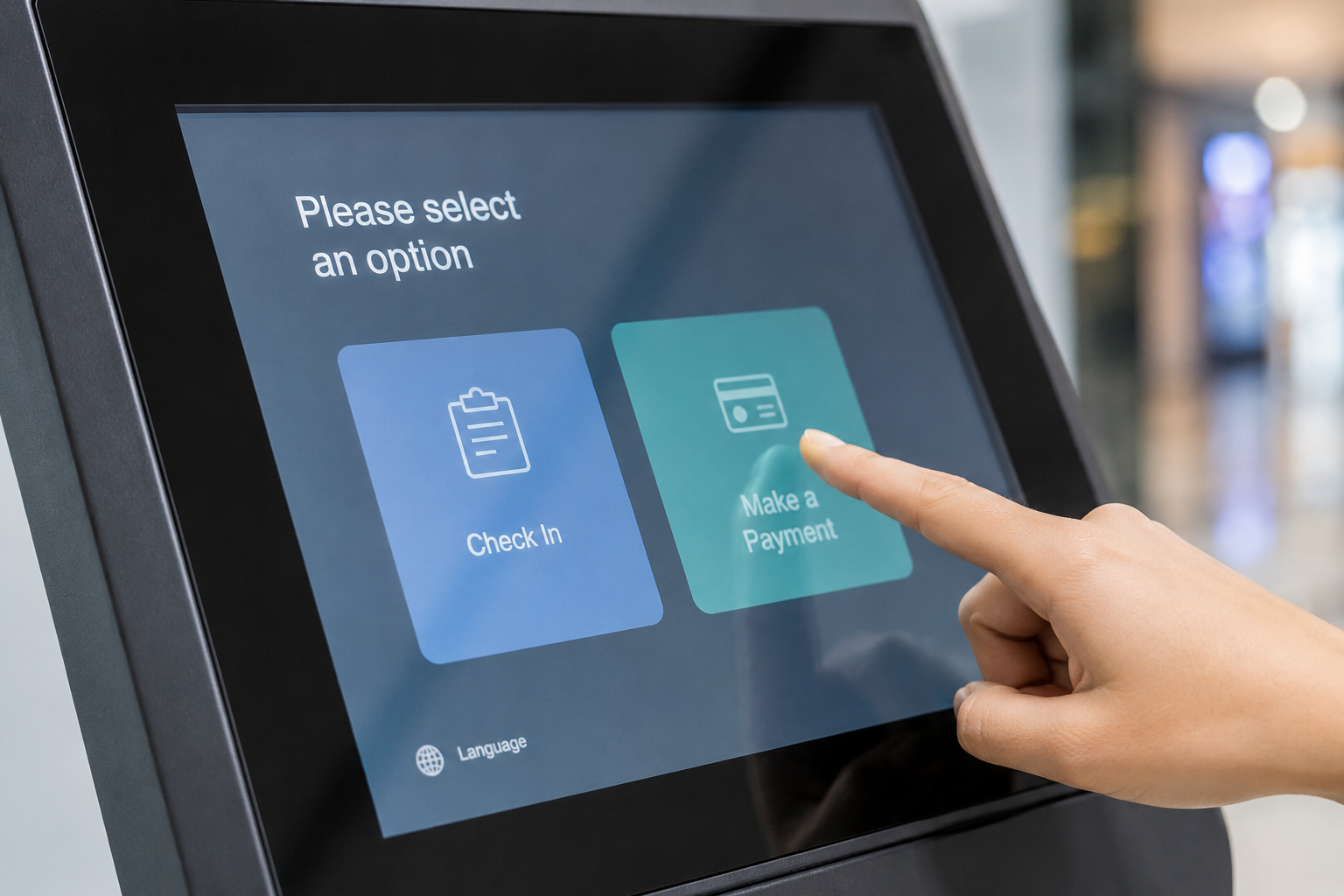
Two touch types turn up in kiosks: projected capacitive (PCAP) and resistive. For a public self-service kiosk, PCAP is the touchscreen solution most integrators specify today.
PCAP reads touch through a solid sheet of cover glass, so the front is a smooth surface that wipes clean and shrugs off constant contact. It supports multi-touch gestures, stays accurate over millions of presses, and can be specified to read through thicker glass or with gloved hands. Resistive touch uses a flexible top layer that responds to pressure from any object, including a stylus or a gloved finger, which still suits some industrial jobs. That flexible layer wears at the touch volumes a busy kiosk sees.
The full trade-off between the two is worth reading before you lock a spec, and it is covered in our guide to PCAP and resistive touchscreens. For a kiosk touched thousands of times a day, the durable answer is PCAP on toughened cover glass, with an oleophobic (anti-fingerprint) coating so the surface stays legible between cleans.
Brightness is where most kiosk specs go wrong. The number gets copied off a datasheet. It should be measured against the light at the install point. A screen that looks bright in a showroom can be unreadable in the spot it has to work.
Match the panel to the environment:
| Where the kiosk stands | Brightness (nits) | Also specify |
|---|---|---|
| Controlled indoor light (reception, hotel lobby, restaurant interior) | 300 to 500 | Standard commercial panel |
| Bright interior (retail floor, airport concourse, quick-service counter under track lighting) | 500 to 700 | Anti-glare surface |
| Near glazing or strong ambient light (facing a shopfront window) | 700 to 1,000+ | Anti-glare or optical bonding |
| Semi-outdoor (under a canopy, or a skylit atrium) | 1,000 to 1,500 | Optical bonding, ambient light sensor |
| Full sun (an outdoor touch screen exposed to daylight) | 2,500 to 3,000+ | AR glass, optical bonding, active cooling |
Raw brightness is only half the story. Optical bonding seals the glass to the panel and removes the internal air gap that causes reflections, so a 1,200-nit bonded screen can out-read a 2,000-nit screen without it. Bonding also stiffens the touch surface, which helps on an outdoor touch screen that takes weather and rough handling. For the full outdoor picture, including operating temperature range and weather sealing, see our guide to outdoor digital signage for Australian conditions.
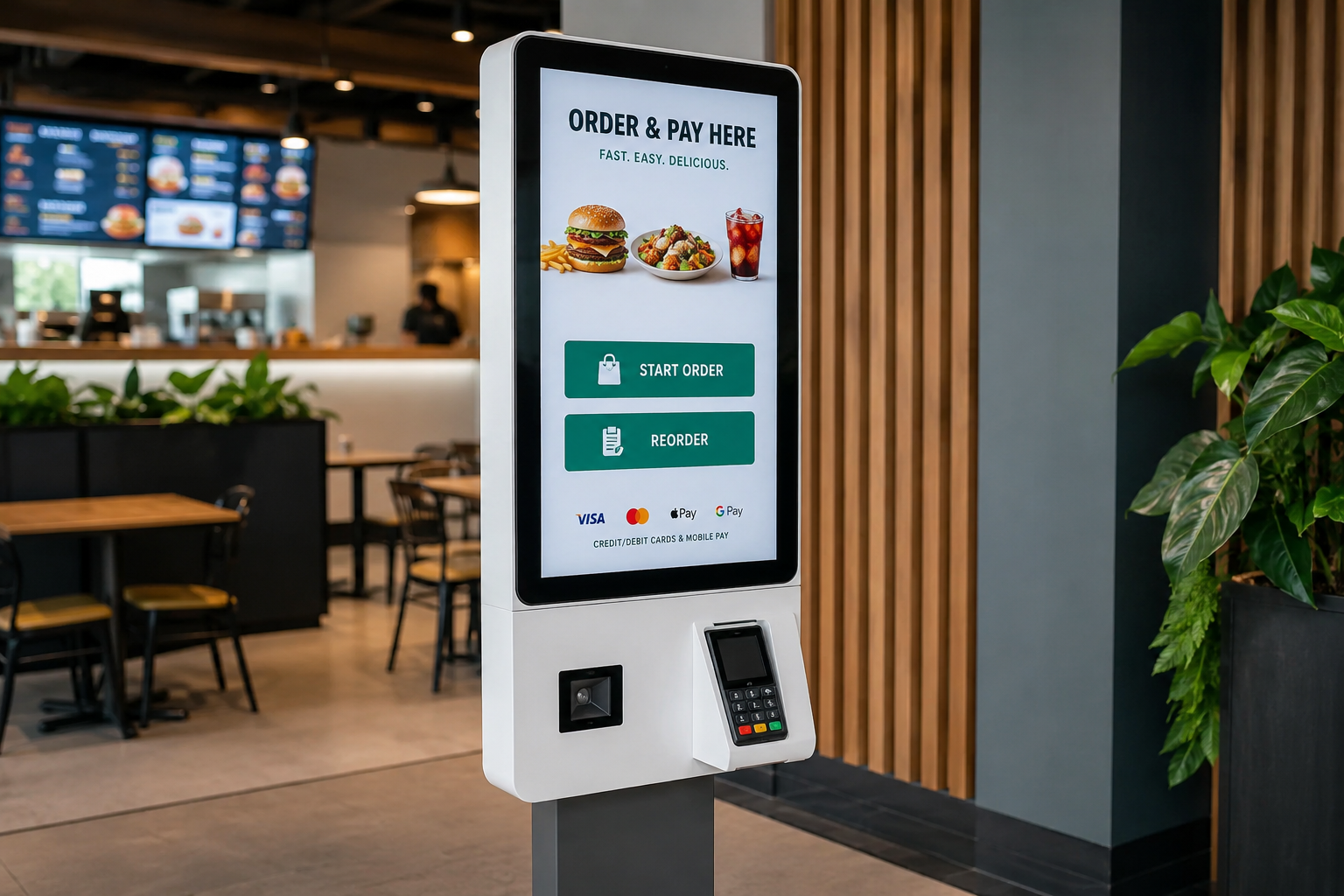
Let the task and the space set the size, rather than the biggest panel the budget allows.
Orientation follows content. Portrait suits directories, wayfinding and any interface that reads as a tall list. Landscape suits menu-style ordering with images and video. One practical check: the active part of the screen should sit within easy reach for the people using it, standing or seated. Public-facing kiosks also carry accessibility requirements for reach height and contrast, which we cover in our retail signage specifier guide.
The screen and touch decide whether the kiosk reads and responds. The enclosure decides whether it survives.
Kiosks come as countertop pedestals, wall-mounted panels or freestanding floor units. Whichever the form, a public unit needs to resist tampering: recessed or screw-in bezels, a lockable access panel, tamper-resistant fasteners, and cable management inside the enclosure. Exposed cabling and pop-out ports become reliability problems inside the first year. For unattended sites, toughened anti-shatter cover glass is worth specifying.
Heat is the main thing that kills a sealed enclosure. The screen and any embedded computer give off warmth with nowhere to go, so airflow matters. Filtered passive ventilation keeps a quiet lobby unit cool without fan noise. A sealed outdoor enclosure needs active fan cooling, or full climate control in extreme sun. Ingress protection follows the location: IP54 is a sensible floor for indoor public areas, and IP65 for semi-outdoor sites exposed to dust and splashes.
Before you request a quote, work through the site rather than the catalogue. Six questions settle most of the specification:
Answer those six and the shortlist narrows quickly. It also heads off the two mistakes behind most early kiosk failures: a screen too dim for its spot, and a consumer-grade panel asked to do a commercial-grade job.
Lock the screen decision before the enclosure is built. Brightness, cover glass and optical bonding all have to be designed into the unit, not added afterwards. Send through where the kiosk will stand, how many hours a day it runs and what it needs to do, and we can match the screen, touch and enclosure to that spot. Stock held in Thomastown also keeps replacement lead times short if a unit ever needs swapping out.
Web Design by CJ Digital