What makes a shopping centre wayfinding kiosk worth using
A specifier's guide to wayfinding kiosks for shopping centres: duty cycle, glare, vandal-resistant touch and…


Picture one marketing coordinator who has ended up looking after twenty screens. A few sit in the head-office foyer; the rest across three other sites. A price changes, a promotion ends, and one site runs last month's offer for a week before anyone spots it. Loading content screen by screen, on a USB stick, stops scaling at about the third screen. A display network is built to solve that exact problem.
Manuco Electronics supplies and specifies commercial displays, and the players that drive them, from Thomastown in Melbourne's north. The guidance here stays neutral on software brand. The aim is to help you match the way you run content to the size of your network and the kind of content you show, so you buy the right setup once.
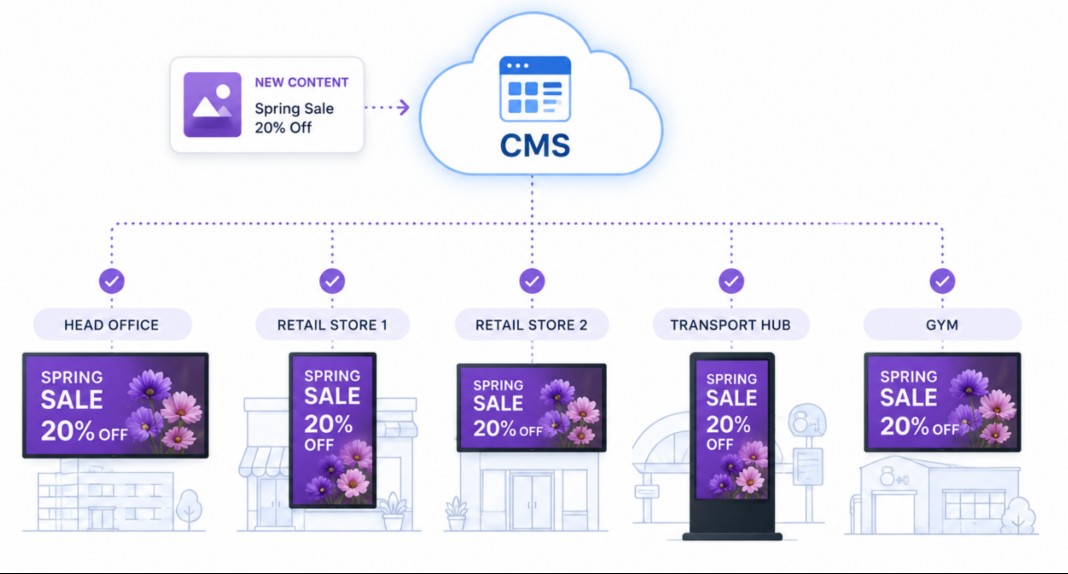
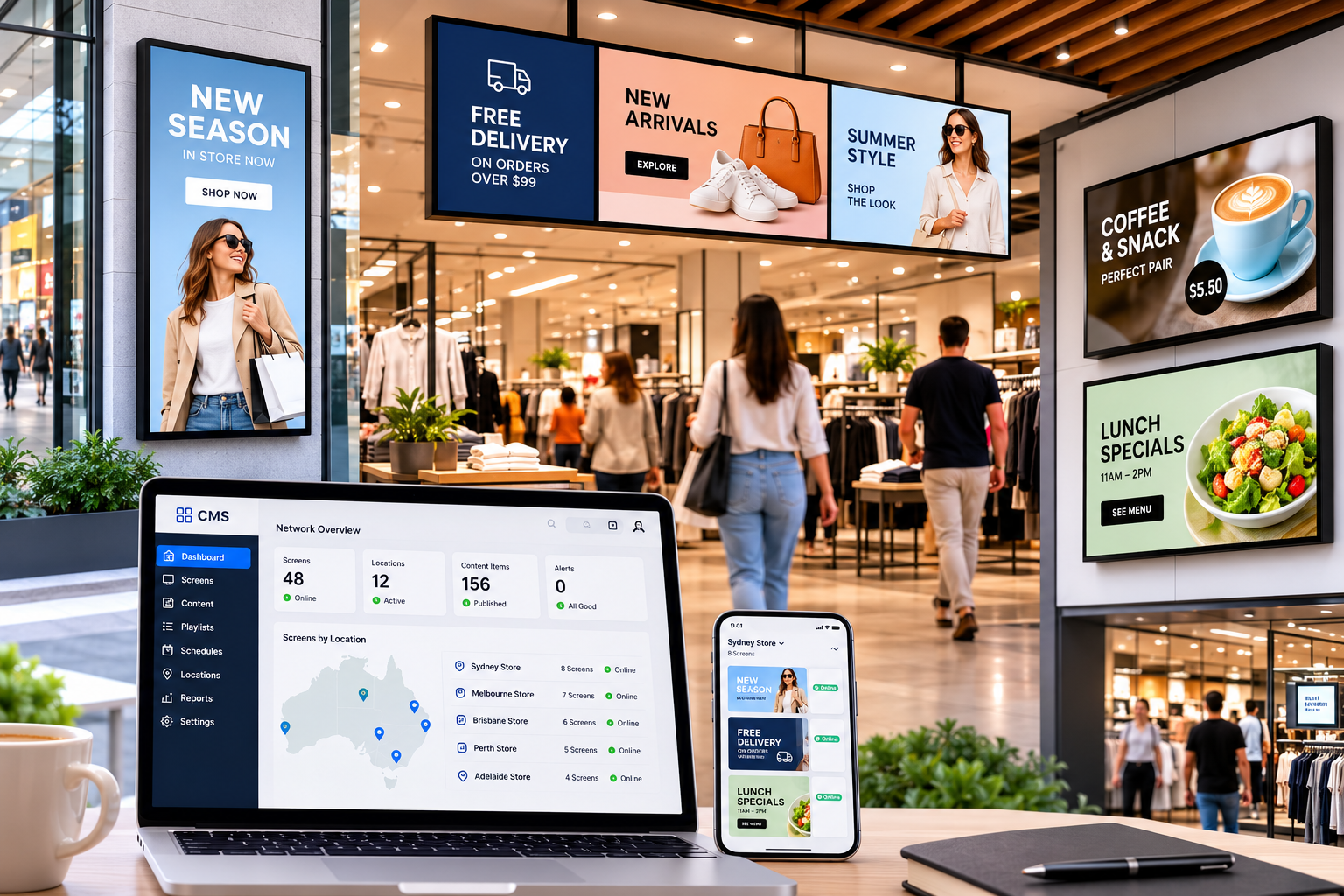
A content management system, or CMS, is the software that stores your content, sets when and where it plays, and sends it out to your screens. It is the part you log into. Everything else in the network takes its orders from it.
A signage CMS does four main jobs:
Most signage runs on a cloud CMS, where the software sits online and you reach it from a browser. A few large or security-sensitive networks run the CMS on their own servers instead, which gives more control but more to maintain. For most buyers, cloud is the simpler choice, and it is the reason a network can be run from anywhere.
Cloud CMS software is usually priced per screen, per month, the running cost people forget when they budget for hardware. We cover the full running cost in a separate guide. Here, the CMS matters as the tool that makes a network manageable at all.
Every screen needs something to run the content. There are two ways to provide it: an external media player, or a system-on-chip (SoC) built into the display.
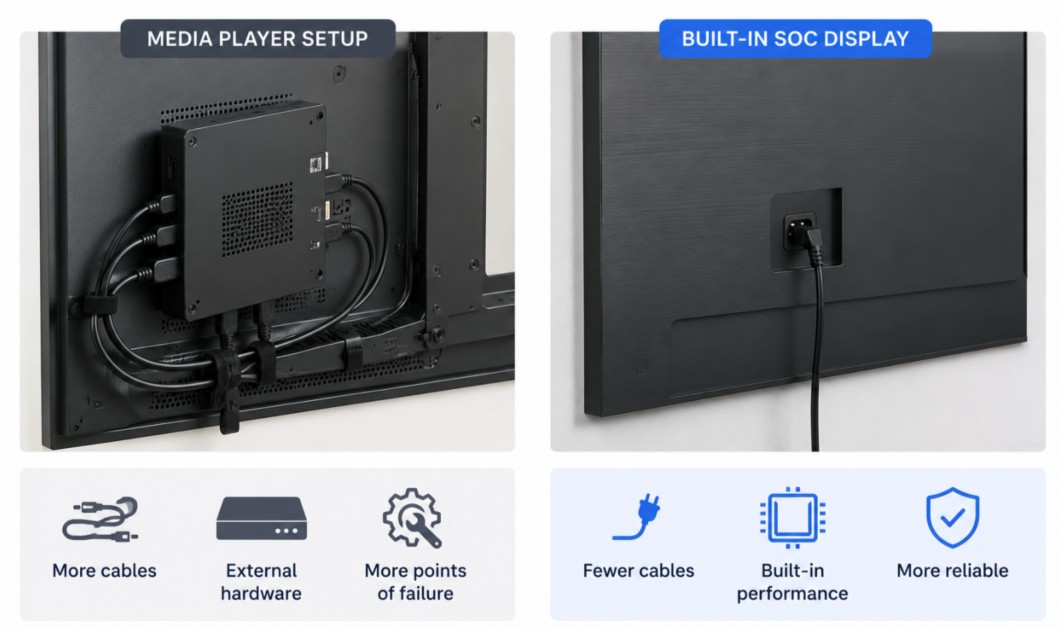
An external media player is a small box that plugs into the screen, usually by HDMI. It has its own processor, storage and network connection, and runs the content the CMS sends it. Because it is separate, you can pick a more powerful player for demanding content, and you can replace or upgrade the player without touching the screen.
A system-on-chip display has the player built in. There is no extra box, no extra cable and one less thing to fail. It runs an operating system on the panel itself, commonly Tizen, webOS or Android. The trade-off is that the compute is tied to the screen's life. If the built-in player falls behind what your content needs, you cannot upgrade it on its own without adding an external player anyway.
There is a middle option worth knowing. A slot-in PC fits a bay in the back of some commercial screens, built to a standard called OPS (Open Pluggable Specification). It gives you the power of an external player without a separate box hanging off the screen, and it swaps out without replacing the display. It suits sites where IT wants a full computer behind the screen but a tidy install.
The rule of thumb is simple. SoC suits simple, standard content and tidy rollouts where every site is the same. An external player suits complex content: multi-zone layouts, several videos at once, live data, interactive touch, or a video wall driving many panels.
| Factor | External media player | Built-in SoC display |
|---|---|---|
| Where the compute lives | A separate box wired to the screen | A chip built into the display |
| Content it handles well | Multi-zone layouts, live data, touch, video walls | Images, video and simple layouts |
| Upgrading it | Swap or upgrade the player without changing the screen | Tied to the screen; cannot upgrade on its own |
| Install and failure points | One more box, one more cable to power and mount | One device, one cable, fewer things to fail |
| Cost shape | Extra hardware per screen, more room to grow | Lower upfront, bundled into the display |
| Best for | Larger or complex networks with room to scale | Simple, standard content and tidy rollouts |
Running content across a display network well comes down to three tools the CMS gives you: scheduling, zoning and grouping. Together they let one person update many screens from a desk.
Remote monitoring sits underneath all of it. A good CMS shows which screens are online and playing, so you find a black screen before a customer does.
Once a network is run by more than one person, the question becomes who can change what. A CMS handles this with user roles and permissions.
For a network where several people touch the content, these controls matter as much as the hardware. They are the difference between a network that stays on-brand and one that drifts.
Most content problems on a network come down to a screen showing content built for a different one. A few habits prevent the common ones.
The right setup follows from two things: how many screens you run, and how complex the content is. A handful of screens showing simple promos runs happily on SoC displays and a basic CMS. A larger network, or one with video walls, live data or touch, is worth building on external players with the headroom to grow.
One decision is easy to get wrong and expensive to reverse: buying screens and players that suit today's content but not next year's. If there is any chance the network will grow, or the content will get richer, size the players for where you are heading rather than only where you start.
If you tell Manuco how many screens you are planning, where they sit and what you want them to show, the team can recommend a player and CMS approach that fits the network now and leaves room to scale. Send through your site list and content plan to get a setup matched to the job.
Web Design by CJ Digital